What Is an Xfinity Router
An Xfinity router is a wireless networking device that allows multiple devices to connect to one internet connection. Popular because it provides fast and secure internet service at an affordable price, most Xfinity routers include built-in security features and an easy admin panel setup.
Whether you want to change WiFi settings such as name and password, configure network settings, update security, manage connected devices, or set up a new connection, you can customize these by logging in to its admin panel using the default IP and credentials. Every router has its own IP that helps users access the router admin panel, where the user can control router WiFi updates.
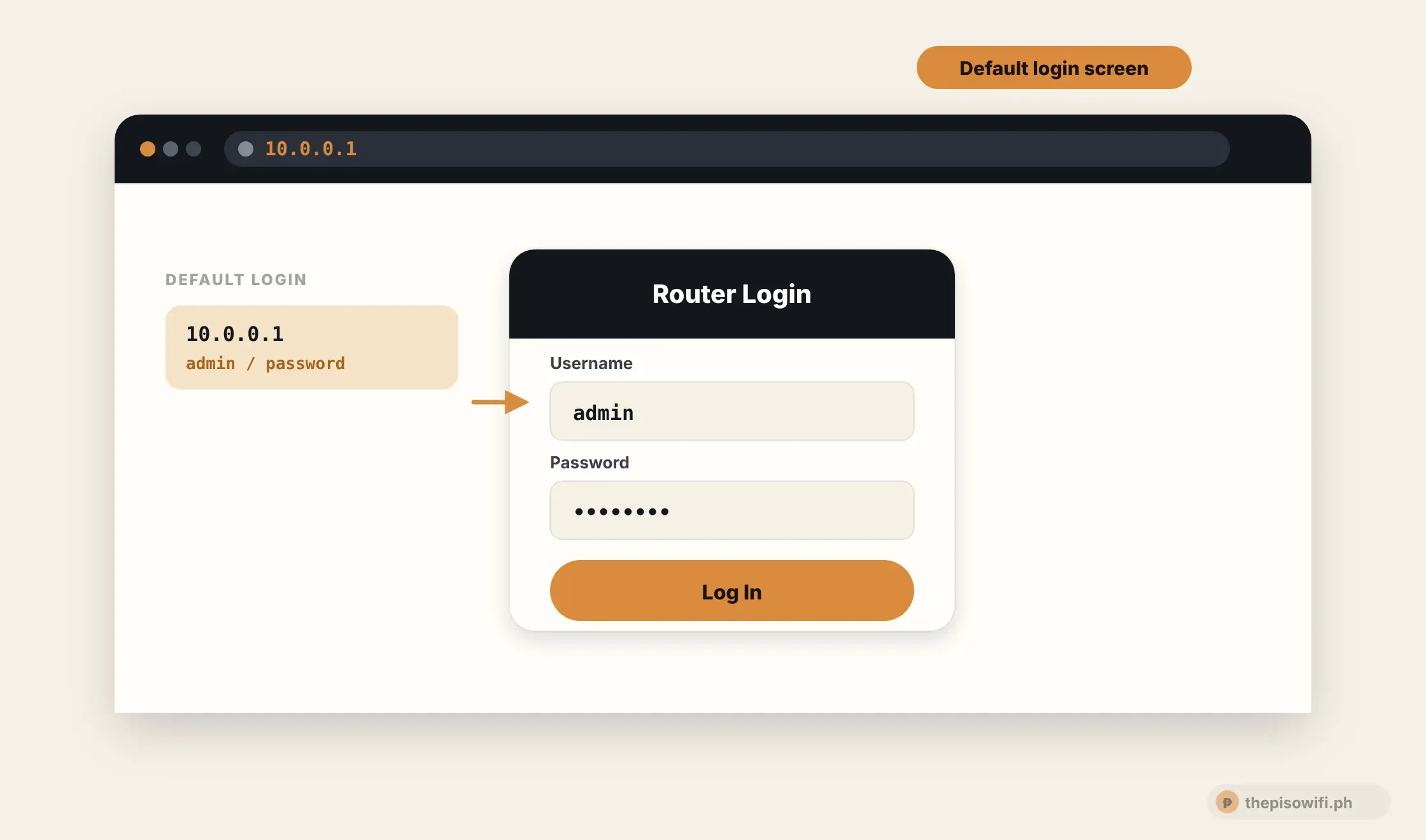
Default Xfinity Router Login Details (IP Address, Username & Password)
| Default IP | Default username | Default password |
|---|---|---|
| 10.0.0.1 | admin | password |
How to Log In to Your Xfinity Router
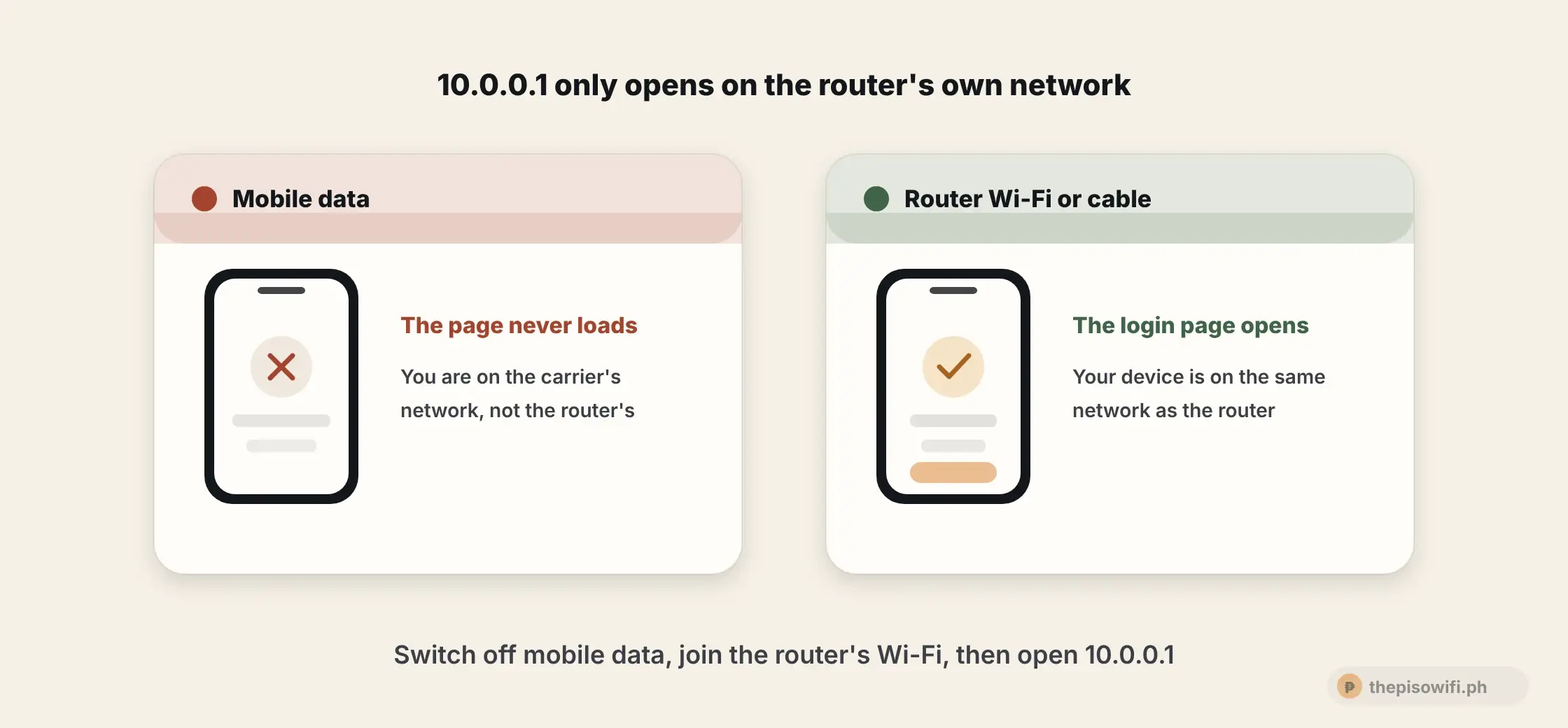
Logging into the Xfinity router admin panel is easy. Before accessing the admin panel, make sure to check that your device is connected to the router network through a Wi-Fi connection or using an Ethernet cable. If your device is not connected, you will not be able to access the admin panel.
- Launch any web browser such as Safari, Edge, or Google Chrome
- Enter the router default IP 10.0.0.1 in the address bar
- On the login page, enter valid default credentials
- After clicking on login, you'll be taken to the Xfinity router dashboard, where you can customize WiFi settings, change/update passwords, set up security settings, or manage connected devices.
If you face any login issues or forget your login password, simply reset your router by pressing and holding the reset button located on the bottom of the router for 15 seconds, then release when the LED lights start blinking.
Troubleshooting Xfinity Router Login Issues
Check Your WiFi Connection
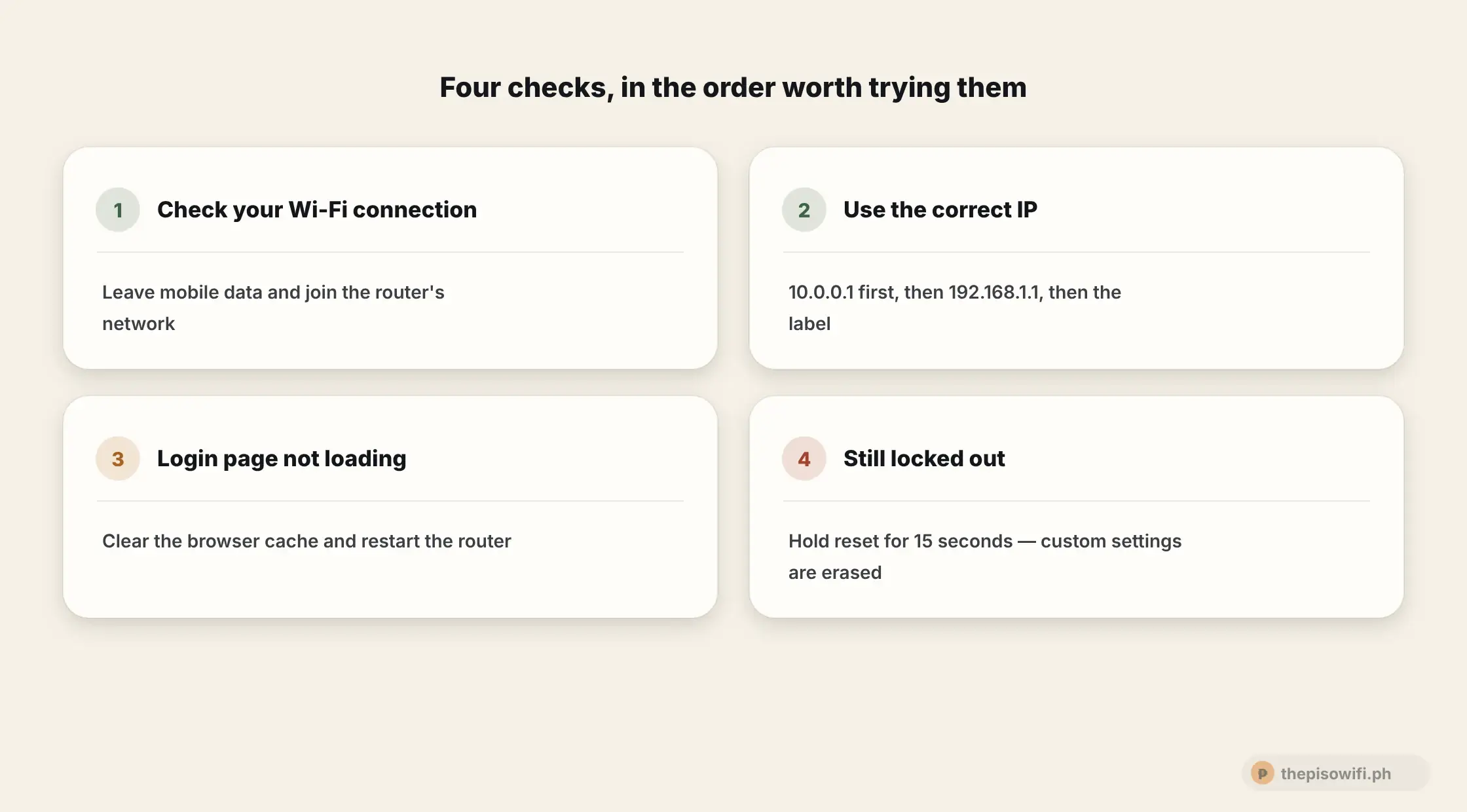
Make sure your device is connected to the router network; if you're using mobile data or another WiFi, the login page can't be opened because of a different IP address. For a quick login, connect your device to the router network using an Ethernet cable.
Use the Correct Xfinity Router IP Address
Most Xfinity routers have a default IP address of 10.0.0.1. If it doesn't work, then try 192.168.1.1 or check the router label for the correct address. Also, ensure that you enter the default IP in the web browser address bar.
Reset Your Xfinity Router Settings
If you have forgotten your login password or face login issues, then the last option is to reset your router to its factory settings by pressing and holding the reset button for 15 seconds; it will erase all your custom settings and set your router to its original settings.
Fix Xfinity Router Login Page Not Loading
If the Xfinity router admin login page is not responding, ensure that you enter the correct credentials or restart your router. Always make sure to clear the browser cache before logging in to the admin panel.
Conclusion
The Xfinity router is one of the most popular networking devices that allows multiple devices in your home and office to connect to one network and keeps your internet fast and secure. The Xfinity router allows users to customize Wi-Fi settings such as changing the Wi-Fi name, password, and username; configuring network settings; updating firmware; and managing connected devices, by logging in to its admin panel using the default IP and credentials. If you recently bought this router or want to set it up, this guide is very helpful for you.
FAQs
What Is the Default Username and Password for an Xfinity Router?
Most Xfinity routers use default credentials for login, such as username “admin” and password admin or blank. You can also check the router label for instructions.
How Do I Log In to My Xfinity Router?
To log in to your Xfinity router admin panel, open a browser and enter the default IP 10.0.0.1 in the address bar. You'll land on the login page, then enter the default login credentials.
How Do I Change My Xfinity Router WiFi Password?
After logging into the Xfinity router admin panel, go to the WiFi or wireless settings section, enter your new WiFi password, save the changes, and reconnect your devices using the updated password.