What Is 192.168.0.1?
192.168.0.1 is a private IP address that many routers use as the default gateway for their devices to access the admin panel. This IP allows users to access the admin panel, where they can control all router performance, change the name and password, set up parental control, or update firmware. If your router uses this IP, 192.168.0.1, as its default gateway, then this guide is for you since this IP is private; it isn't accessible to the public internet, making it a secure option for home and office WiFi networks.
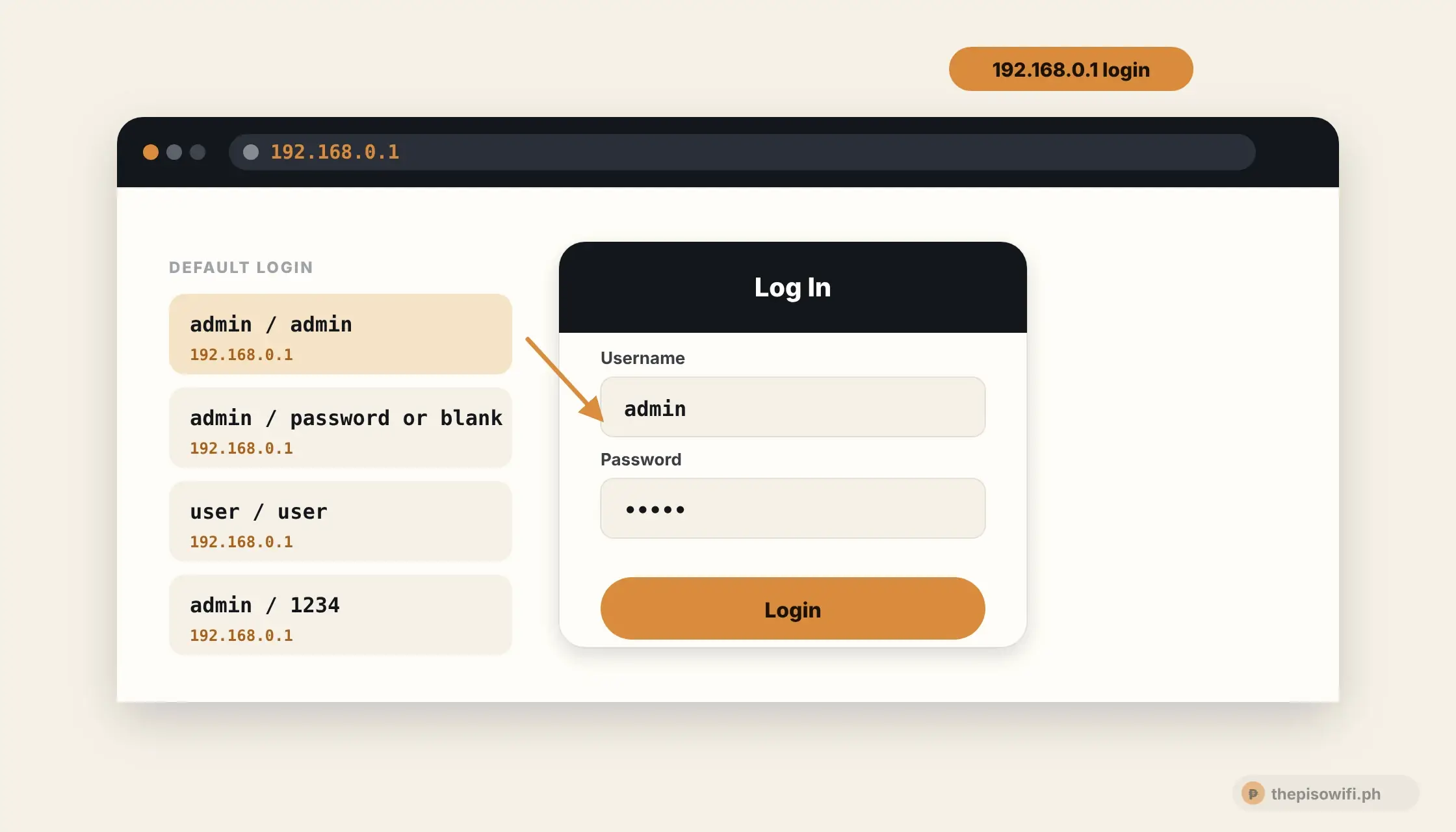
Default 192.168.0.1 Router Login Username and Password
| Login IP | Default username | Default password |
|---|---|---|
| 192.168.0.1 | admin | admin |
| 192.168.0.1 | admin | password/blank |
| 192.168.0.1 | user | user |
| 192.168.0.1 | admin | 1234 |
How to Log In to 192.168.0.1
Before logging in to the admin panel, make sure your device is connected to the router network through a Wi-Fi connection or using an Ethernet cable. If your device is not connected to the router network, you're unable to access the admin panel. The login process is simple and easy and takes only a few steps.
- Launch any web browser, such as Safari, Edge, or Google Chrome
- Enter router IP 192.168.0.1 in the address bar
- The login page appears on your screen; enter default credentials. You can check your router label for the username and password
Click on "login," and you'll be able to access the admin panel where you can change WiFi settings, customize the name, or update the firmware.
How to Change Router Settings
Once you log in to the admin panel, you'll be able to make changes, customize the Wi-Fi name, and change the Wi-Fi and admin passwords for better security. Most routers have a simple dashboard where all the settings are organized into categories.
How to Change the Router Admin Password
- Log in to your router admin panel using default IP and credentials
- Go to administration settings in the dashboard
- Select change admin password
- Create a strong password
- Confirm the password
- Log in again using the new password
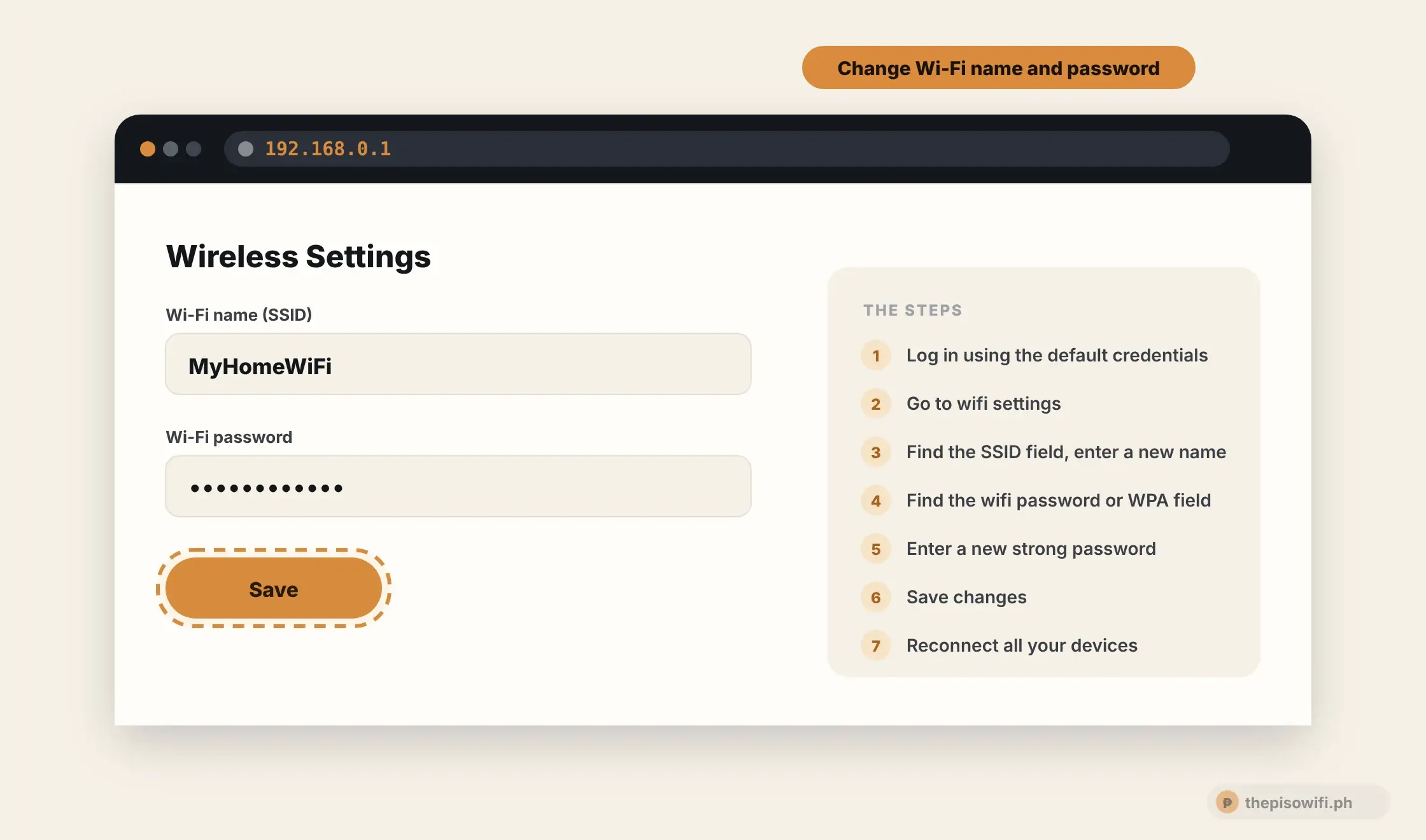
How to Change Your WiFi Name (SSID)
- Log in to the admin panel using the 192.168.0.1 IP
- Open the dashboard and go to wireless settings
- Find the SSID field and enter a new name
- Click save changes
How to Change Your WiFi Password
- Log in to the admin panel using default credentials
- Go to wifi settings
- Locate the wifi password or WPA/WPA2 field
- Enter a new strong password and save changes
- Reconnect all your devices using the new password
Private vs. Public IP Addresses
| Feature | Private IP Address | Public IP Address |
|---|---|---|
| Purpose | Used within your home, office, or local network. | Used to connect your network to the internet. |
| Accessibility | Can only be accessed inside the local network. | Can be accessed over the internet. |
| Assigned By | Usually assigned by your router. | Assigned by your Internet Service Provider (ISP). |
| Security | More secure because it isn't directly visible online. | Visible on the internet and requires proper security measures. |
| Examples | 192.168.0.1, 192.168.1.1, 10.0.0.1 | 8.8.8.8, 1.1.1.1 (examples of public IP addresses) |
| Common Use | Router login, printers, smart TVs, laptops, and other local devices. | Websites, online gaming, email, and internet communication. |
What Is the Internet Assigned Numbers Authority (IANA)?
IANA, the Internet Assigned Numbers Authority, handles worldwide IP address ranges, domain names, and protocol numbers. One of its key responsibilities is reserving private IP addresses such as 192.168.0.0/16, which includes 192.168.0.1. This ensures that your home and office networks around the world can use these addresses without conflicting with public internet addresses. In simple words, IANA helps keep the internet's IP addresses organized by making sure each network uses the correct IP for its intended purpose.
How to Find Your Router's 192.168.0.1 IP Address
On Windows
- Press Windows + R.
- Type cmd and press Enter
- Type ipconfig
- Look for default gateway.
On macOS
- Go to system settings
- Select network and your connection
- View the router address
On Android
- Open wifi settings
- Tap your connected network
- Check the gateway or router IP
Can't Access 192.168.0.1? Here's How to Fix It
Make Sure You're Using the Correct IP Address
Sometimes the user is unable to access the admin panel. To access the admin panel, ensure that you enter the correct IP address, 192.168.0.1, in the address bar, and before accessing the login panel, clear the browser cache or try restarting your router.
Check Your Device's Network Connection
Before accessing the admin panel, check that your device is connected to the router network. If your device is not connected to the network, then you will not be able to log in to the admin page.
Disable VPN or Proxy Services
Sometimes VPN or proxy services block signals and network connections before login. Again, disabling these services can help you to access the admin panel.
Reset the router to factory settings.
If you have forgotten your router or your router keeps rebooting, reset your router to its factory settings. Press and hold the reset button for at least 15 seconds until LED lights start blinking, then release the button and wait for a few minutes for the router settings to return to their original state.
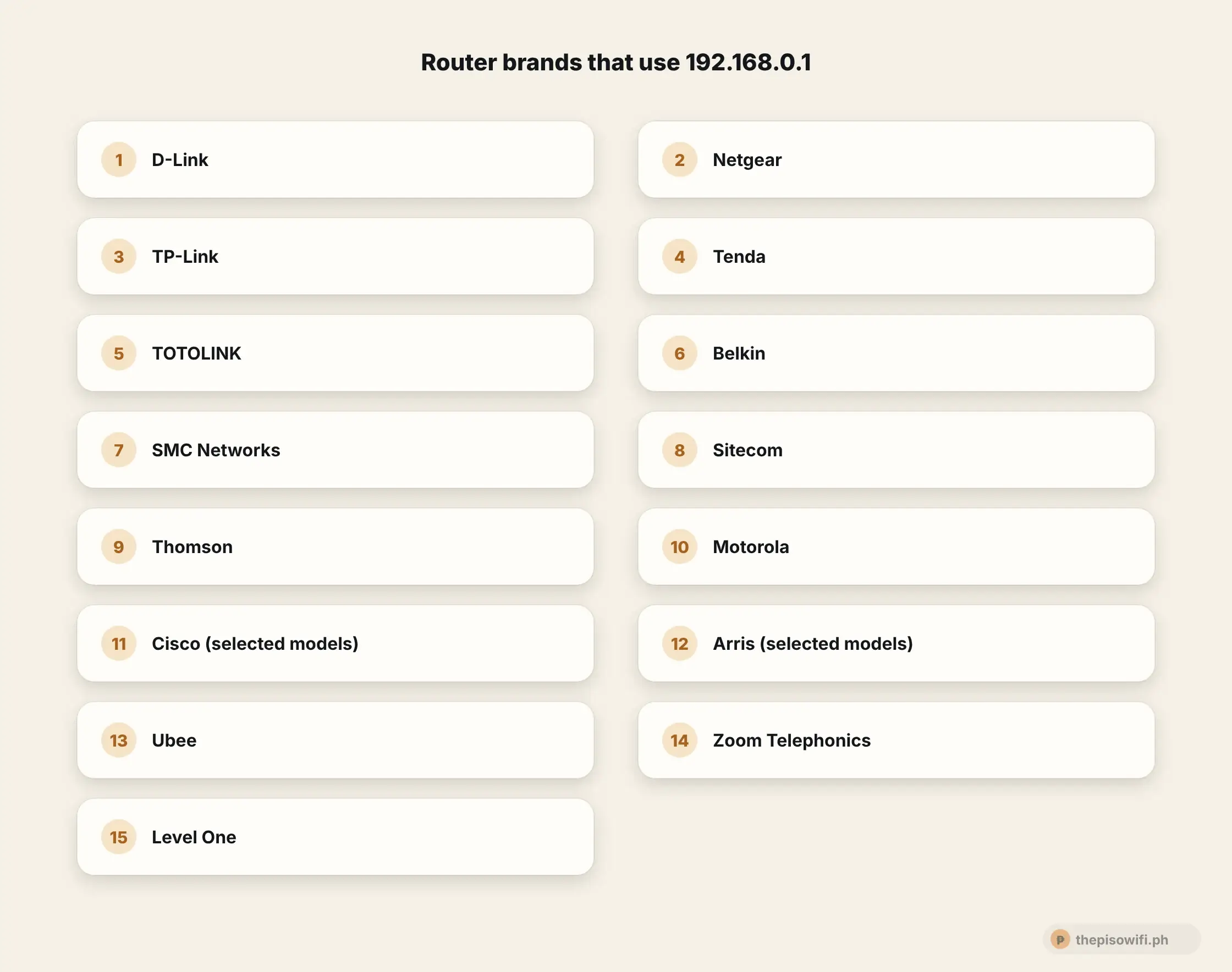
Popular Router Brands That Use 192.168.0.1
- D-Link
- Netgear
- TP-Link
- Tenda
- TOTOLINK
- Belkin
- SMC Networks
- Sitecom
- Thomson
- Motorola
- Cisco (selected models)
- Arris (selected models)
- Ubee
- Zoom Telephonics
- Level One
Not every model uses the same IP. Before entering the IP, make sure to check your router label for more instructions.
Security Tips for Routers Using 192.168.0.1
- After logging in to the admin panel using default credentials, changing your admin password can increase security
- Updating firmware can help to improve router performance and security
- Create a strong wifi password
- Create a guest network for outsiders instead of giving out your original internet password
- Check connected devices regularly and manage unauthorized devices
Conclusion
192.168.0.1 is a private and most commonly used IP address used by many router models to help you to access the admin panel where you can manage connected devices, customize network settings, set up parental control, change WiFi names and passwords, or improve security. If you've recently bought any router that uses this IP, 192.168.0.1, as its default gateway, then this guide is for you. We hope that this guide has made things easier for you.