What is a Comtrend Router?
A Comtrend router is a networking device that allows multiple devices to share the same connection. It creates a secure wired and wireless WiFi network, making it easy for smartphones, laptops, smart TVs, and other devices to connect to the internet. Many ISP providers use Comtrend routers because they're widely famous and provide reliable and advanced features such as Wi-Fi security, parental controls, port forwarding, and guest networks. By logging in to the admin portal, you can easily customize network settings.
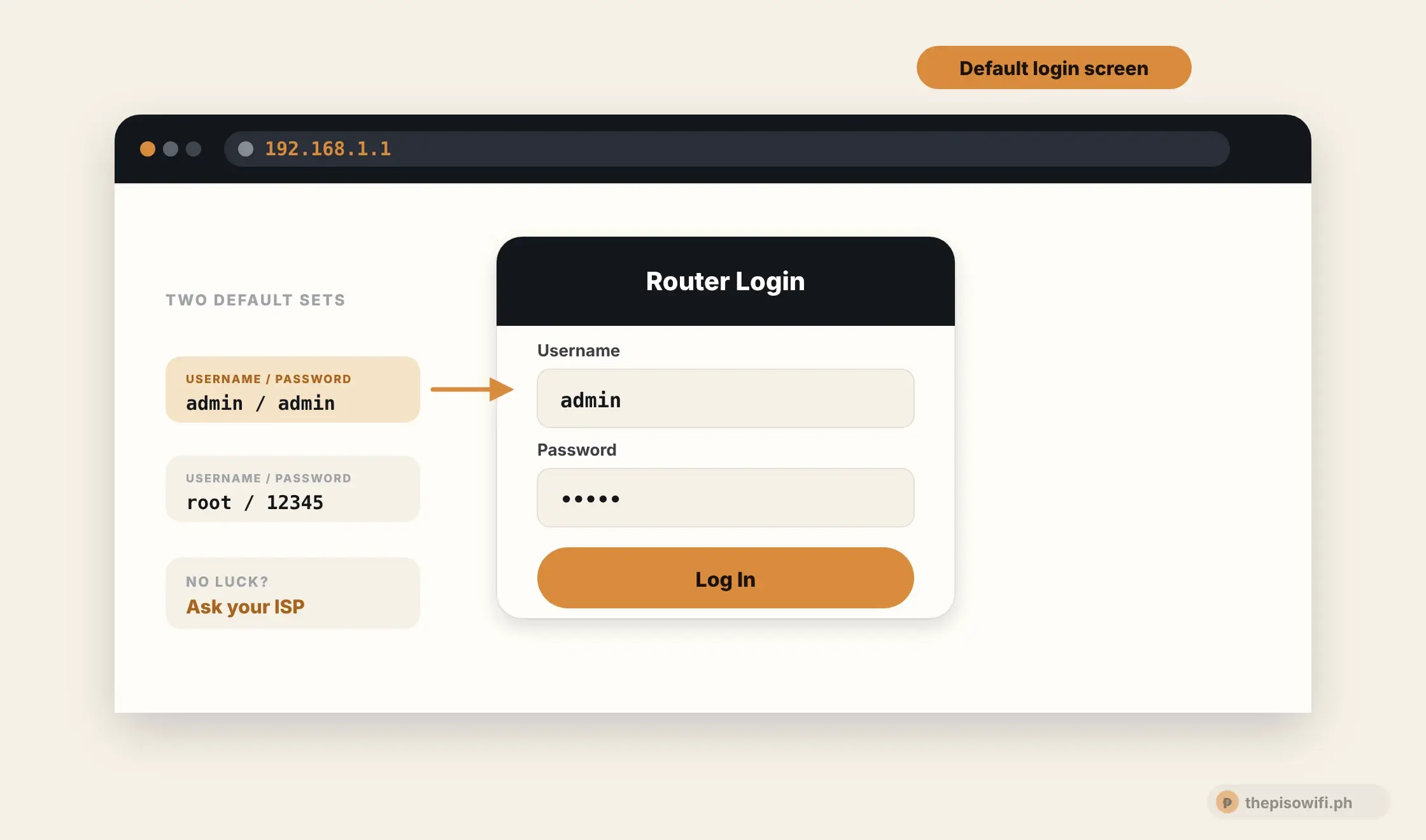
Comtrend Router default login details
| Default IP | Username | Password |
|---|---|---|
| 192.168.1.1 | admin | admin |
| 192.168.0.1 | admin | admin |
| 192.168.1.1 | root | 12345 |
How to Log In to a Comtrend Router
Connect your device to the Comtrend router network using an Ethernet cable or WiFi. If your device is not connected to router WiFi, you will not be able to access the admin login portal.
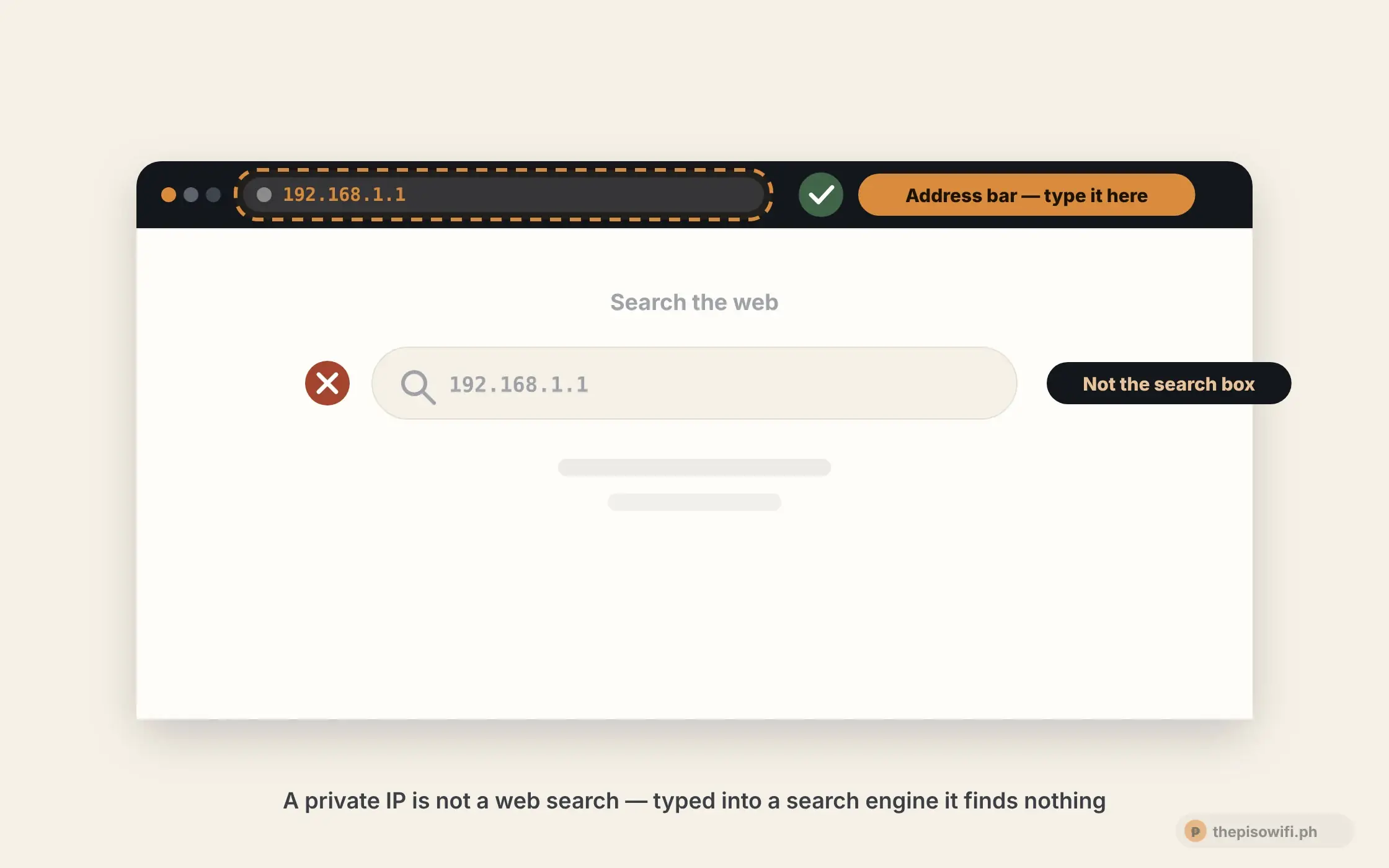
- Open a web browser and enter the default Comtrend IP 192.168.1.1 in the address bar
- It will land you on the login page
- Enter the default credentials; if the default credentials are incorrect, contact your router's ISP and they will assist you
- Admin dashboard appears on your screen; now you will be able to customize settings such as changing the WiFi name, username, and password; managing connected devices; and configuring security updates.
How to Change Comtrend Router Settings
After logging into your admin panel, you can change your settings to improve security and overall performance. Updating your passwords can help to secure your router admin portal and Wi-Fi network. Follow these steps if you want to update your settings.
Change Wi-Fi Name (SSID)
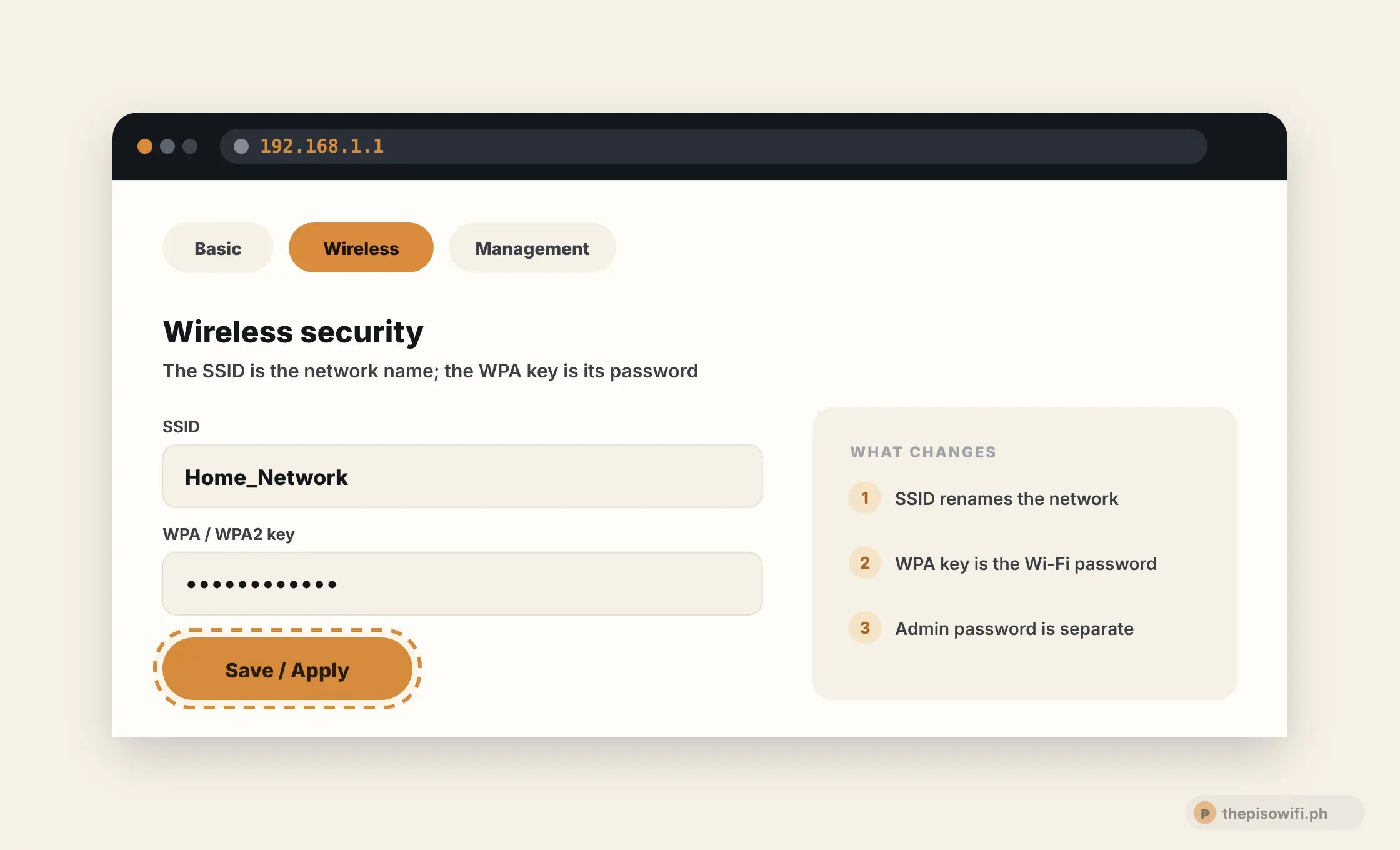
Updating your wifi name can help you to recognize your network personally
- Log in to the admin portal
- Go to wireless or Wi-Fi settings
- Find the SSID name field
- Enter your preferred name
- Click save and apply changes.
Change Wi-Fi Password
Changing your wifi passwords can help you to secure your network connection more efficiently and prevent unauthorized users from accessing your network
- Open wireless or Wi-Fi settings in the admin panel
- Locate the WPA/WPA2 key
- Create a strong and unique password
- Click save changes
- Reconnect your network using a new password
Change Router Admin Password
Updating your router admin password can help you to secure your login credentials and prevent unauthorized users from accessing the admin portal
- Log in to the Comtrend router
- Open administrative settings
- Select change admin password
- Enter the current password, then create a new password
- Confirm password and save changes
- Log in again using the new password
How to Reset Your Comtrend Router to Factory Settings
If you're unable to log in to your admin portal or have forgotten your login credentials, don't panic. The last option is to reset your router to factory settings, but always make sure it will reset all your settings, even WiFi names, passwords, and other settings.
To reset your router, follow these steps:
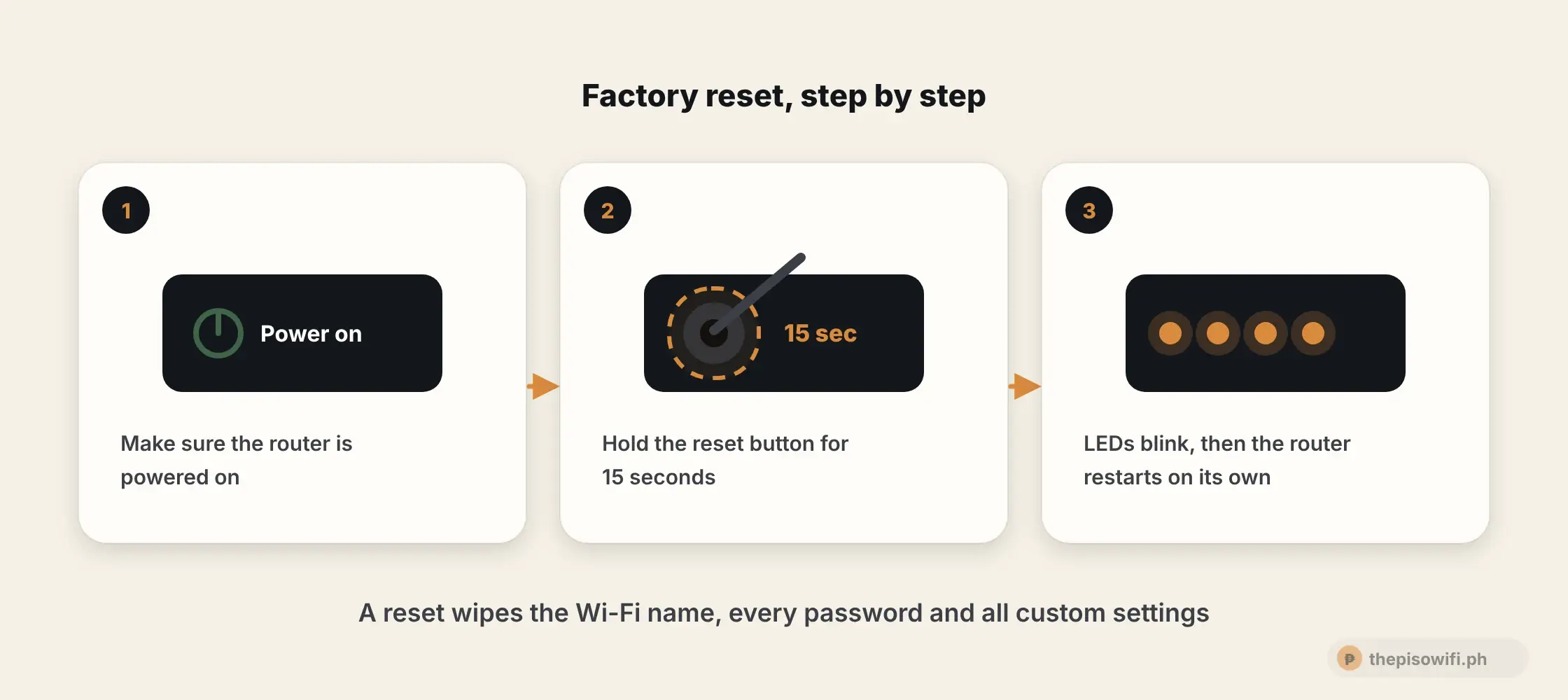
- Make sure your router is powered on
- Press the reset button on the back or bottom of the router for 15 seconds until the LED lights start blinking
- Release the button and wait for a few minutes to restart your router
It will restart your router and set the router settings to their original state. Now you will be able to log in using the default IP and be able to set up your settings again.
Common Comtrend Router Login Problems and Fixes
Can't Access the Login Page
Make sure you enter the correct login credentials, such as the default username and password. If you still can't access it, then try clearing your browser cache.
Incorrect Username or Password
Use default credentials if they haven't changed or check the router label and contact the ISP's router provider for the correct credentials. If you have forgotten your password, then reset the router to factory settings.
Router Not Responding
If your router is not responding, simply rebooting the device can help to boost network signals and ensure that the router is powered on and all cables are securely connected.
Internet Not Working After Login
Check that the ISP connection is active. Restart the router if issues continue. Contact your ISP.
Conclusion
Comtrend is one of the most popular wireless networking devices that offers to connect your home and office devices to a network. Many people prefer this router because it is affordable and provides a secure networking connection, making it reliable for users. Comtrend also allows users to customize WiFi settings by logging into its admin portal using the default IP and credentials. If you face troubleshooting issues or have forgotten your WiFi password, you can secure your credentials and manage security settings by following this guide.
FAQs
What is the default IP address for a Comtrend router?
The default Comtrend router IP is 192.168.1.1, but some of its models also use 192.168.2.1 or 192.168.10.1 for access to the login panel.
What are the default username and password for a Comtrend router?
For the Comtrend router admin login panel, the default username is “admin,” and the default password is admin or password.
How do I reset my Comtrend router?
To reset the Comtrend router, press and hold the reset button located on the router for at least 15 seconds and release it when the LED lights start blinking.