What is a Cisco router?
A Cisco router is a networking device that connects multiple devices like laptops, mobile PCs, and other devices to the internet. People prefer Cisco because it provides reliable, secure, fast internet speed, while allowing customization of the network settings through the admin login portal using the default IP and details, where you can easily change the WiFi name and password, configure network settings, manage connected devices and set up security features. Whether you're using a Cisco router in a home office or in a business environment, it gives a smooth experience and high network coverage.
Cisco Default Login Details
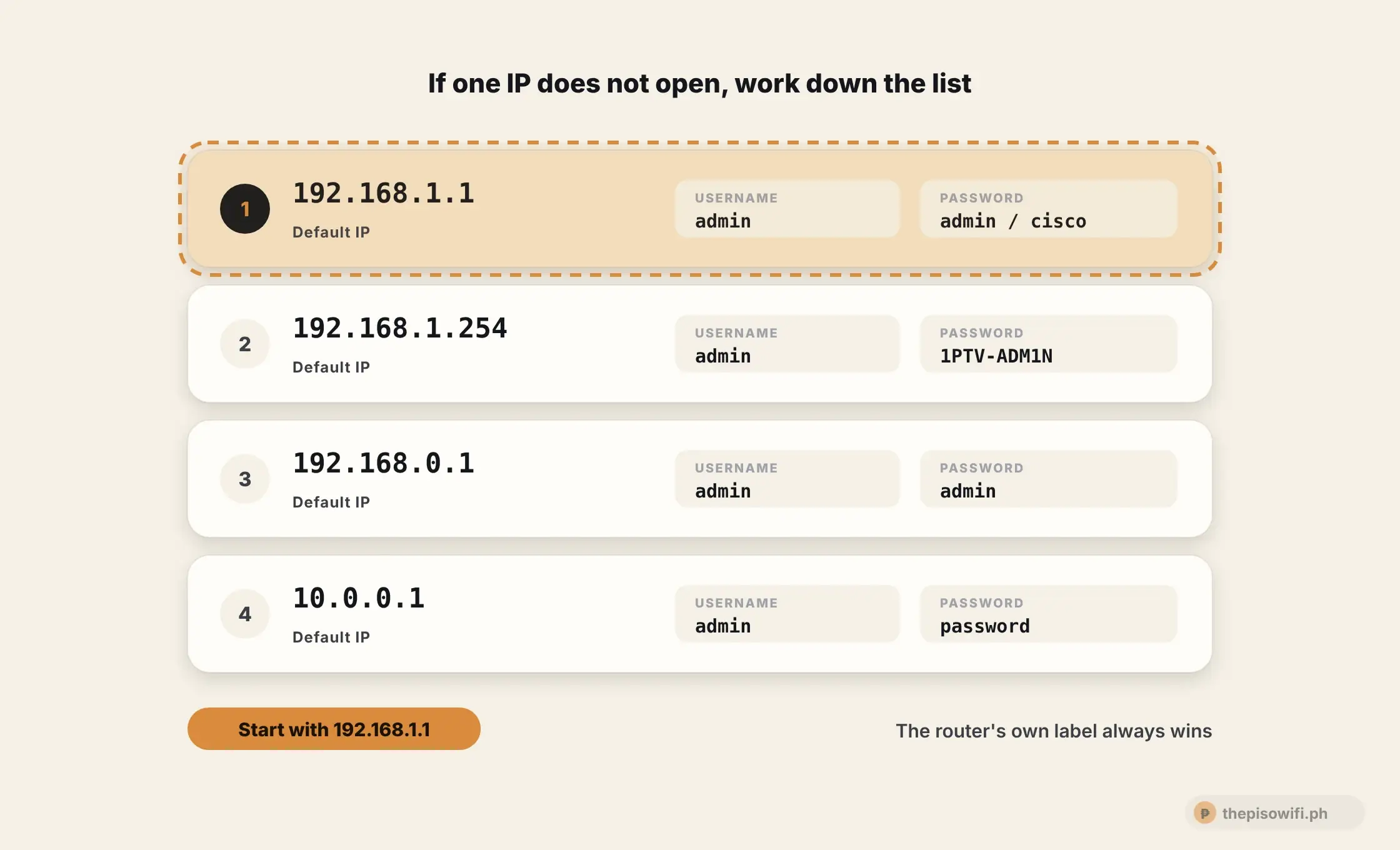
| Default IP | Default username | Default password |
|---|---|---|
| 192.168.1.1 | admin | admin/cisco |
| 192.168.1.254 | admin | 1PTV-ADM1N |
| 192.168.0.1 | admin | admin |
| 10.0.0.1 | admin | password |
How to Log In to a Cisco Router
A Cisco router allows users to change network settings using the admin portal. You can easily log in to admin portal using default IP and details follow these steps for smooth login.
Connect to the Cisco Router
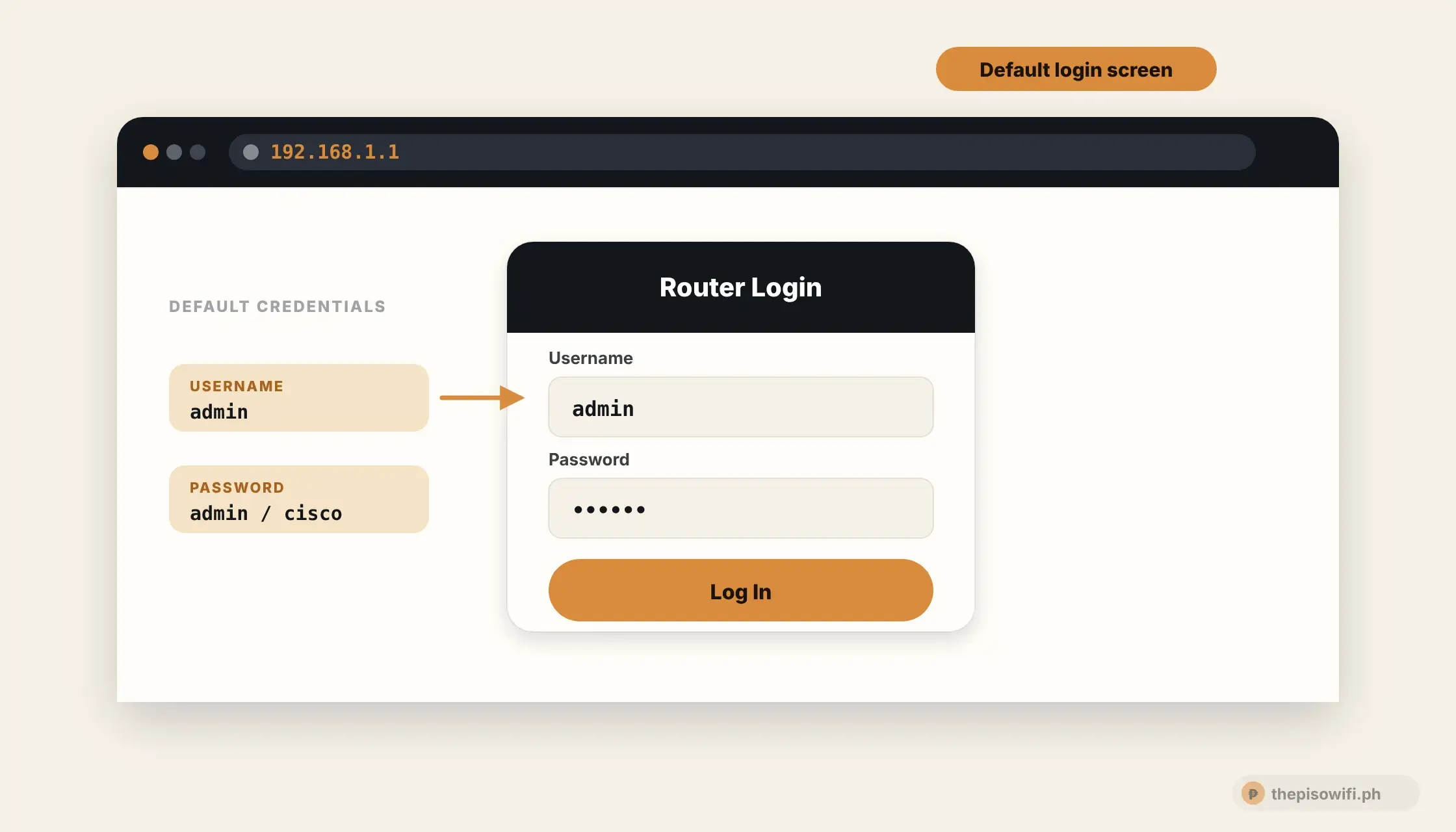
Connect your home or office devices to the Cisco router using the WiFi network or an Ethernet cable. If your device is not connected to the router network, then you'll not be able to access the login admin portal.
- Open any web browser such as Edge, Google Chrome, or Safari
- Enter the default Cisco router IP 192.168.1.1 or 192.168.0.1 in the address bar
- The admin login page appears on your screen
- Enter the correct default credentials
- After signing in, you'll see the admin dashboard; now you'll be able to make changes to your router settings
How to Change Cisco Router Settings
After logging in to your Cisco admin portal, you can easily customize the network settings, such as changing the Wi-Fi name, changing the username and password, and configuring network and security settings. Here are the steps to help you to change your network settings:
Change the Wi-Fi Name (SSID)
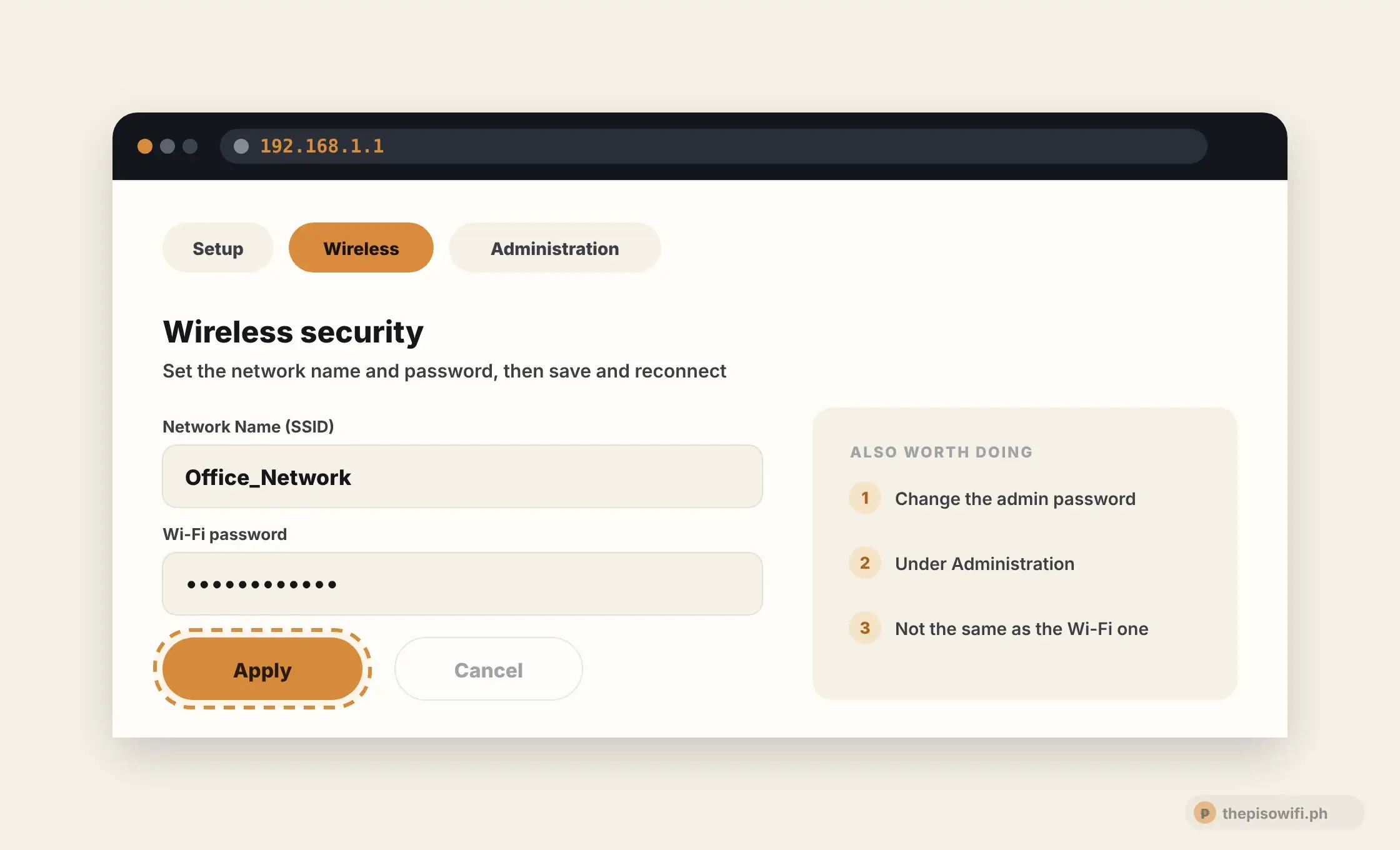
- Open the wireless or Wi-Fi settings section
- Enter a new Wi-Fi name SSID
- Click “save” or “apply” to update the changes
Change the Wi-Fi password.
- Go to the wireless settings
- Enter a new password
- Save changes and reconnect your device using the new password
Update the Router Admin Password
- Open administration management settings
- Enter a new admin password to protect the router dashboard
- Save the settings and log in using the new passwords
Configure Network and Security Settings
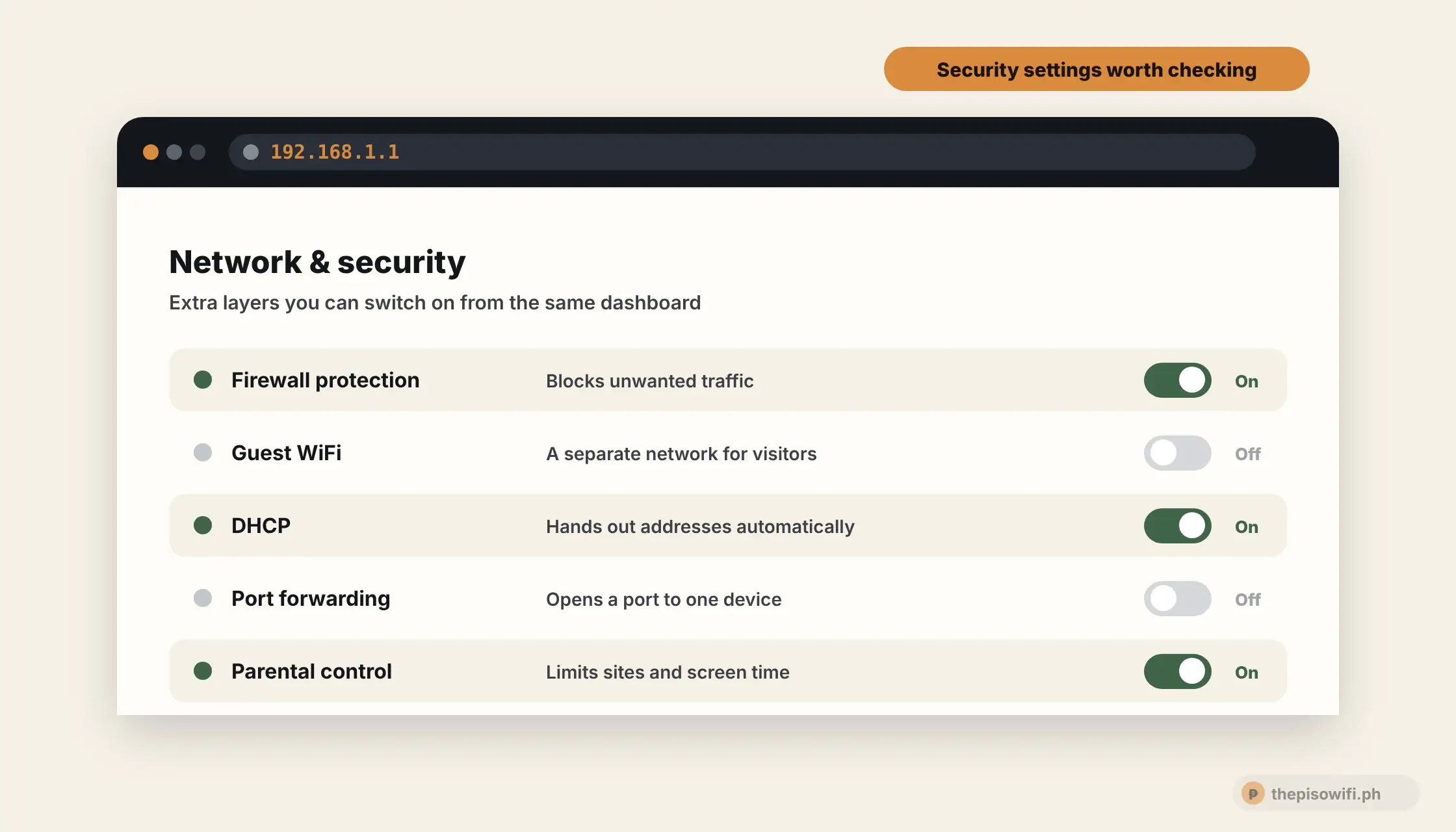
You can also manage network security settings such as firewall protection, guest WiFi, DHCP, port forwarding, and parental control to keep your router extra secure.
Troubleshooting Cisco Router Login Issues
Unable to Access the Login Page
Make sure your device is connected to the Cisco device and you enter the correct default IP address in the address bar. If you are still unable to access the login page, clear your browser cache.
Incorrect Username or Password
Double-check the login credentials, try the Cisco default username and password, or check the router label for the correct details.
Forgot Cisco Router Login Credentials
If you have forgotten your Cisco router credentials, such as usernames or passwords, check for any saved credentials or contact your ISP; they will configure the router for you.
Reset the Cisco router to factory settings.
Press and hold the reset button on the back or bottom of the router for at least 15 seconds until the LED light starts blinking. The router will return to its factory settings, and you will need to set it up again.
Conclusion
A Cisco router is one of the most popular networking devices that offers secure internet, providing your home and office's multiple devices, such as laptops, mobiles, and PCs, with one internet connection. You can customize network settings by logging in to its admin portal using the default IP in the address bar and entering the default credentials. You will be able to access the router admin dashboard, where you can change the Wi-Fi name and username, manage connected devices' data limits, and configure network security settings.
FAQs
How do I change my Wi-Fi password?
You can change your wifi password by logging in to your Cisco admin portal, opening wireless security, entering a new strong wifi password, saving settings, and then reconnecting your device using the new password.
How to reset my Cisco router?
Press and hold the reset button on the back or bottom of the router for at least 15 seconds. It will reset your router to factory settings. Now you can change its settings manually.
What is the default IP address for a Cisco router?
Every router has its own default IP and credentials. A Cisco router's default IP is 192.168.1.1. Some Cisco models also use this IP 10.0.0.1.