What is a Belkin router?
A Belkin router is a wireless networking device that allows multiple devices to communicate with each other. The router provides secure Wi-Fi connections and connects your home and office devices like laptops, TVs, and mobile phones to the same network.
Many users prefer Belkin routers because they give so many advantages, including secure Wi-Fi networks and advanced features, and give access to customize the router settings by logging in to its admin panel, where you can change Wi-Fi passwords, usernames, manage connected devices, update security, and reset your router to factory settings. This makes Belkin routers a popular choice among users who want stable and affordable home networking devices.
Belkin Router Default Login Details (IP Address, Username & Password)
| Default IP | Default username | Default password |
|---|---|---|
| 192.168.1.1 | admin | admin |
| 192.168.2.1 | admin/blank | admin/blank |
| 10.1.1.1 | admin | password |
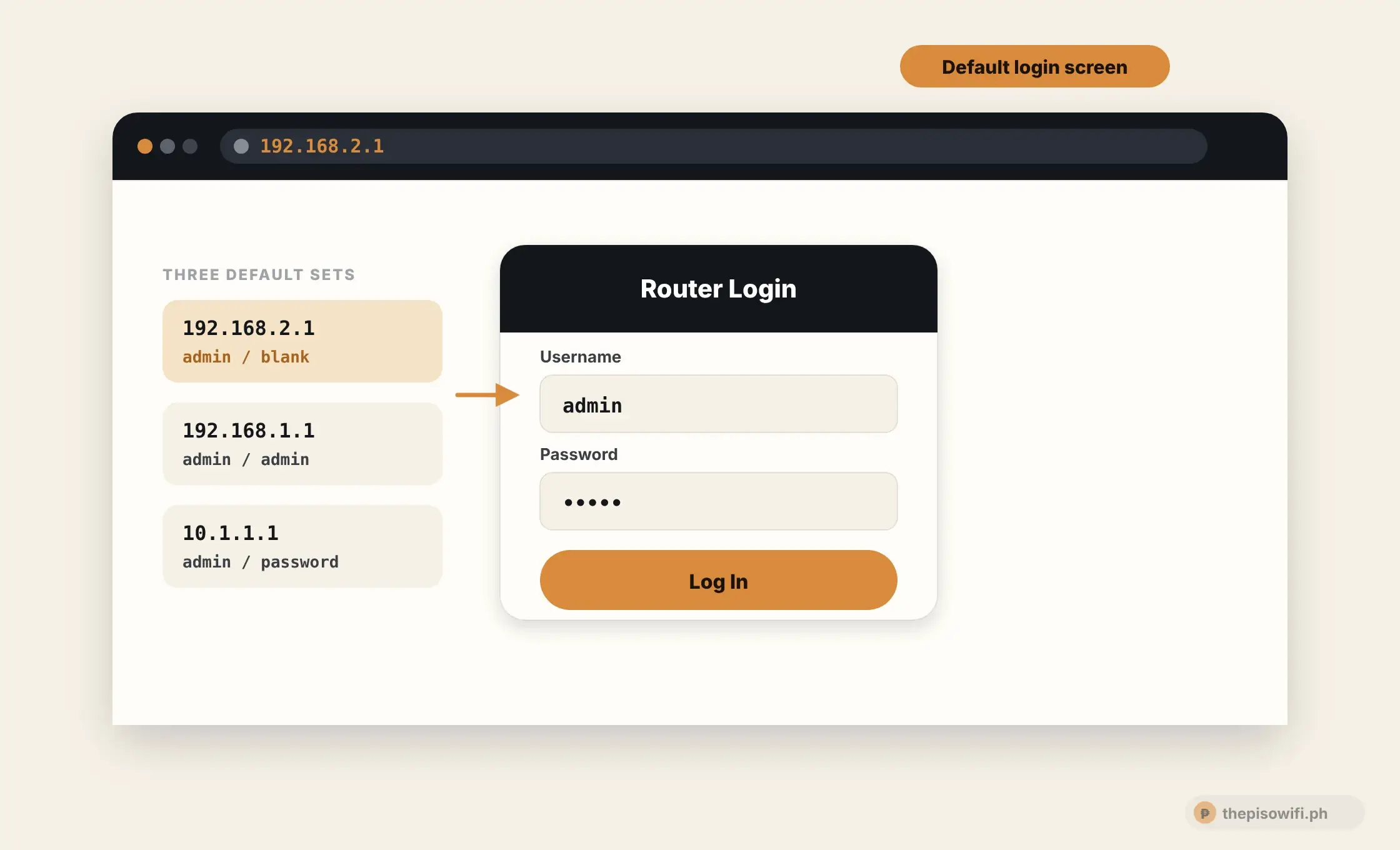
How to Log In to a Belkin Router
Since you are trying to log in to the Belkin router admin portal, your device must be connected to the Belkin router network using a WiFi connection or an Ethernet cable. The login process is quick and only takes a few minutes.
- Open any web browser such as Chrome, Edge, or Safari
- Enter the router's default IP, 192.168.2.1, in the address bar
- It will land you on the login page
- Enter valid login credentials
- Click login or submit, and you will be taken to the admin dashboard, where you can customize router settings, change the WiFi name and password, and configure network settings
How to Change Belkin Router Wi-Fi Name and Password
Changing your router name and password is easy and quick. When you access the admin login panel, it will take a few steps to update your password.
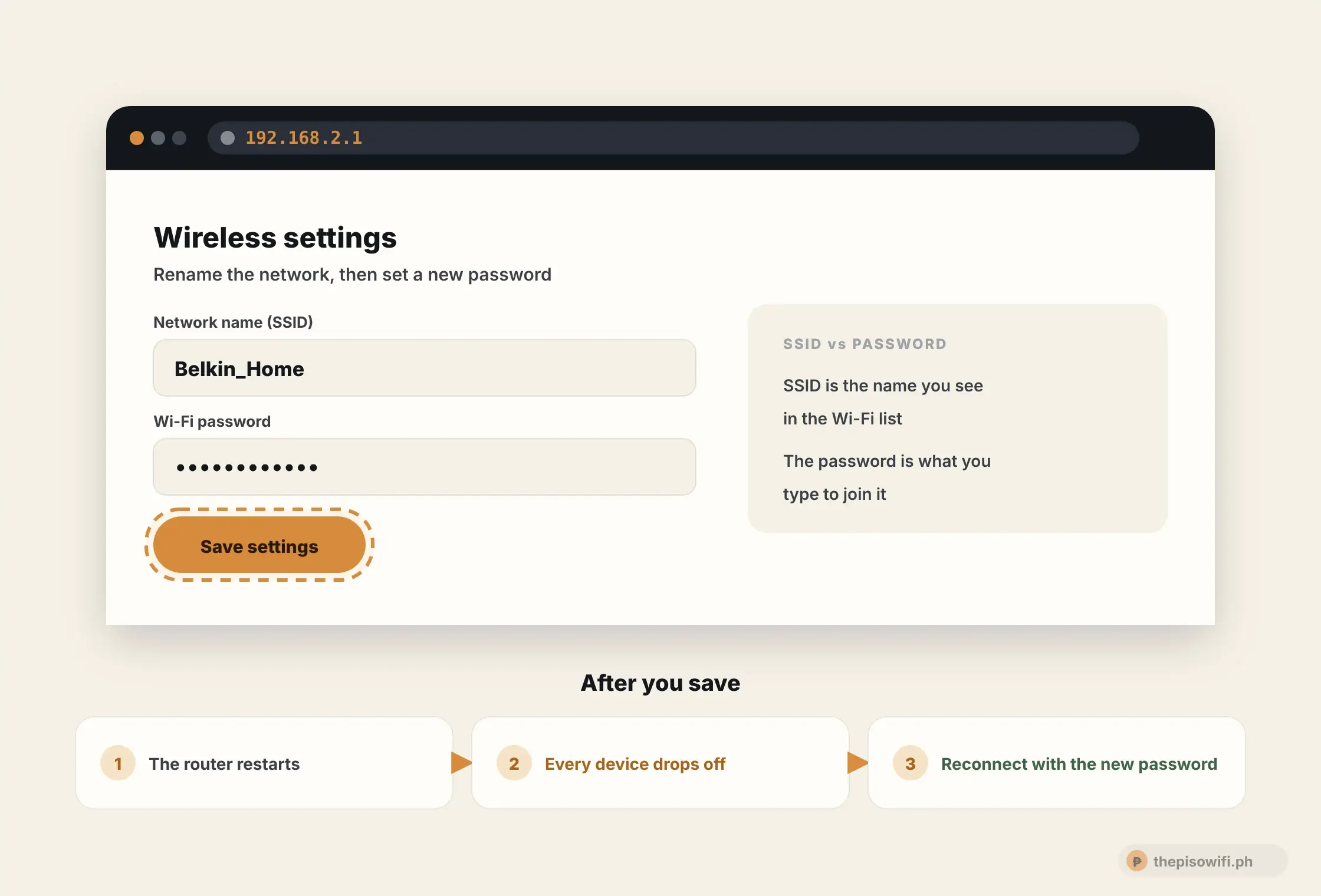
Change the Wi-Fi name
- Log in to the admin panel using the default credentials
- In the dashboard, go to wireless or wifi settings
- Find the network name SSID field
- Enter the new WiFi name you want to set.
Change wifi password
- Go to wireless or Wi-Fi settings
- Enter a new strong password
- Click save settings
- The router may restart again
- Reconnect all your devices using the new password
How to Reset a Belkin Router
Sometimes users forget their login passwords; resetting your router can help to set the router settings to their original ones, which helps users to log in using default credentials and then change router settings easily. Resetting your router is a simple solution.
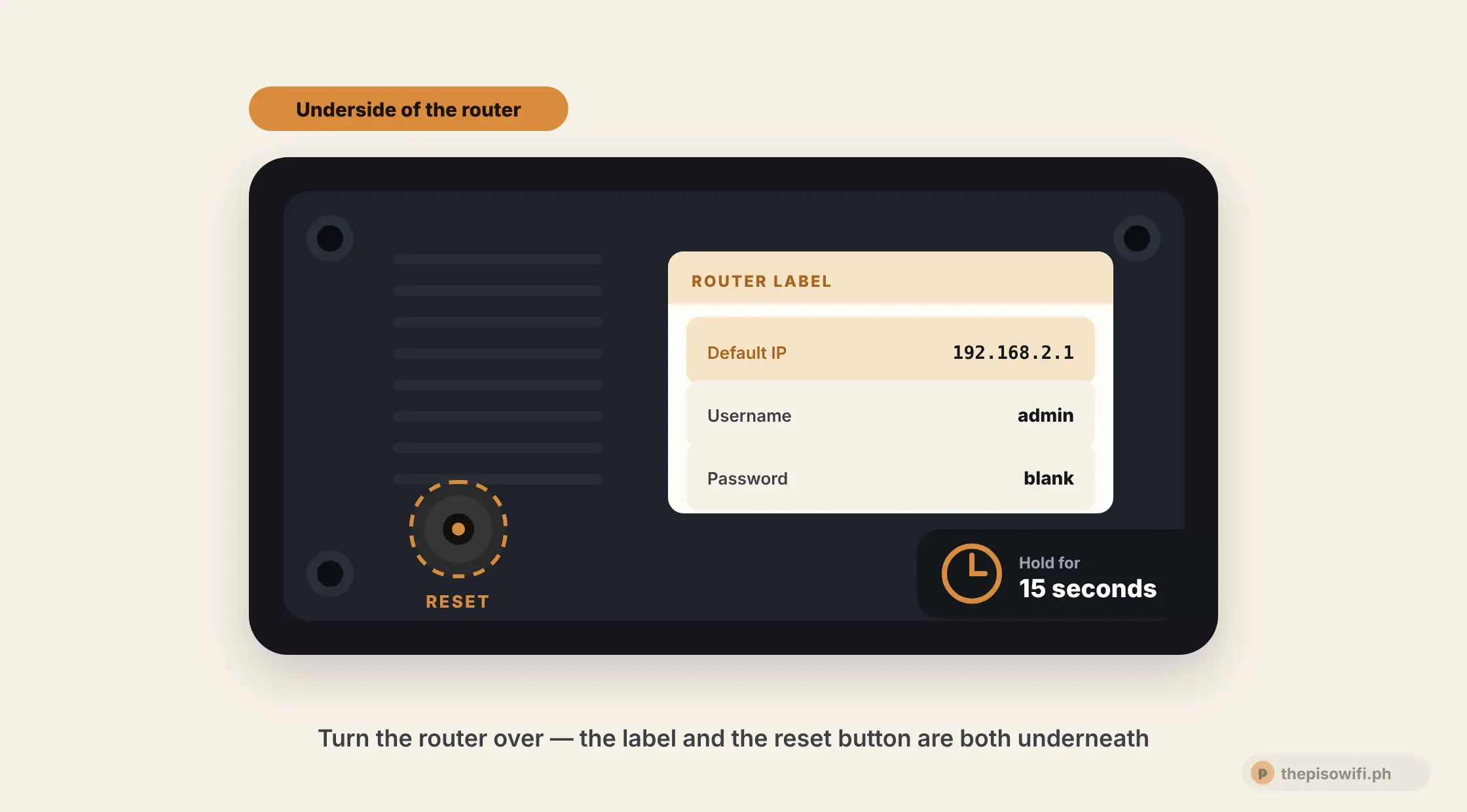
- Make sure your router is powered on.
- Then find the small reset button located on the back or bottom of the router
- Press and hold the button for 15 seconds until the router's LED lights start blinking
- Release the button and wait for a few minutes to reset your router
Resetting your router to its factory settings will erase all your settings, even the WiFi name, password, and customized settings.
Troubleshooting Belkin Router Login Issues
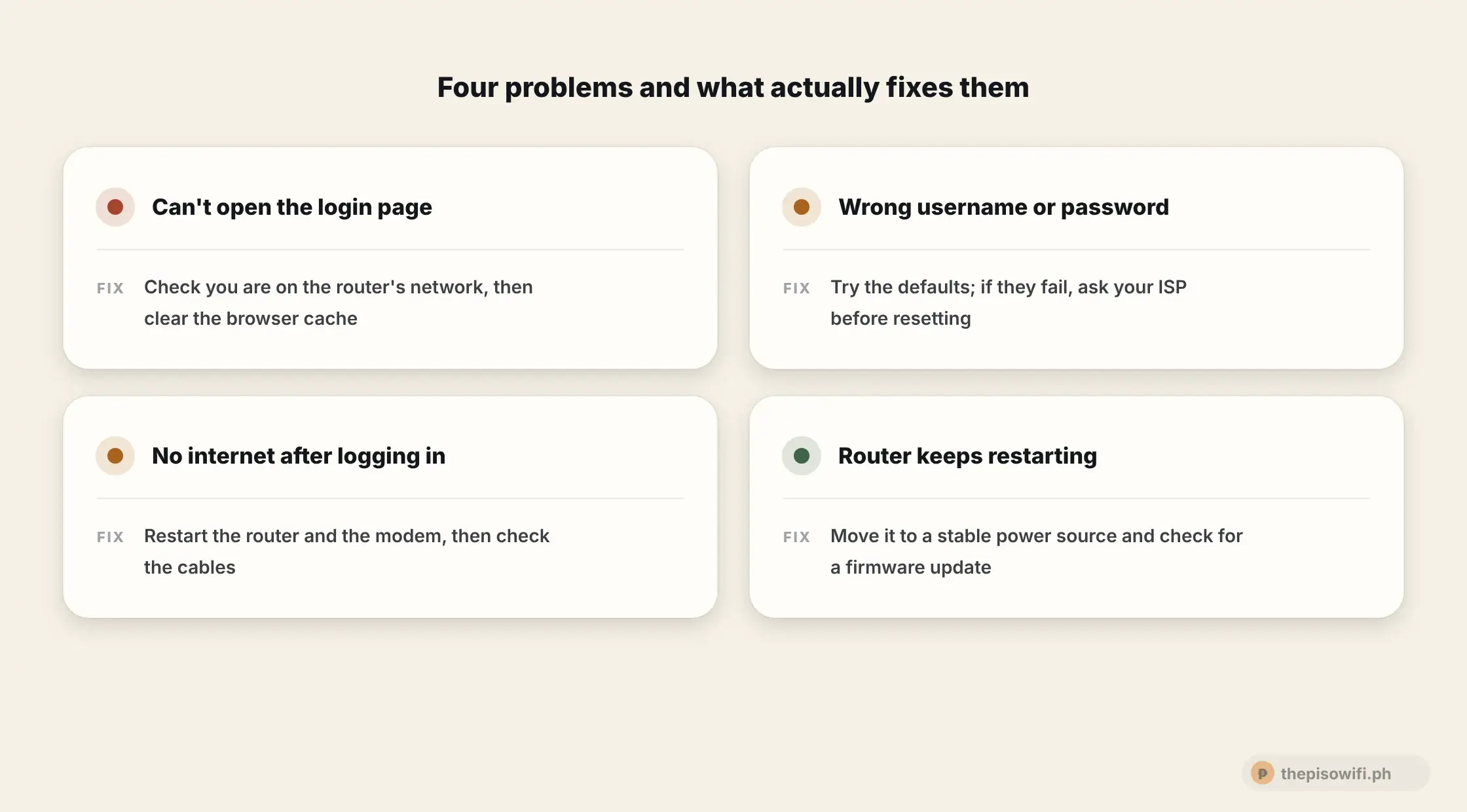
Can't Access the Belkin Login Page
If you can't access the Belkin router admin login page, make sure you enter the correct credentials or your device is properly connected to the router network before logging in. Clear your browser cache.
Incorrect Username or Password
Ensure that your username and password are correct. If credentials are incorrect, contact your router's ISP. If your issues are still the same, then resetting your router is the easiest solution.
Belkin Router Not Connecting to the Internet
If your router is powered on but there is no internet access, restart both the router and your modem. Check that all cables are securely connected and that your internet service is active.
Router Keeps Restarting or Not Responding
Sometimes the router keeps rebooting and becomes unresponsive. Make sure it's connected to a stable power source, restart the router, and check whether the update is available.
Conclusion
The Belkin router is a wireless networking device that offers secure and affordable WiFi connections and allows your home and office devices to connect, making it a reliable choice for users who want to customize their WiFi settings and need secure WiFi connections. This router provides advanced features with fast service. You can also customize the WiFi settings by logging into its admin portal by entering the default IP 192.168.2.1 in the address bar, where you can change the WiFi name and username, improve network security, and troubleshoot common connection problems with ease.
FAQs
What is the default IP address for a Belkin router?
The default IP of the Belkin router is 192.168.2.1 or 192.168.1.1. You can use these IPs to access the admin login page.
What are the default username and password for a Belkin router?
Most Belkin routers use “admin” as the default username, while the password is often “admin” or left blank.
How do I reset my Belkin router?
To reset your Belkin router, press and hold the reset button located on the back or bottom of the router for 15 seconds until the LED lights start blinking, then wait for a few minutes to reset your router.