What Is the D-Link Web Interface?
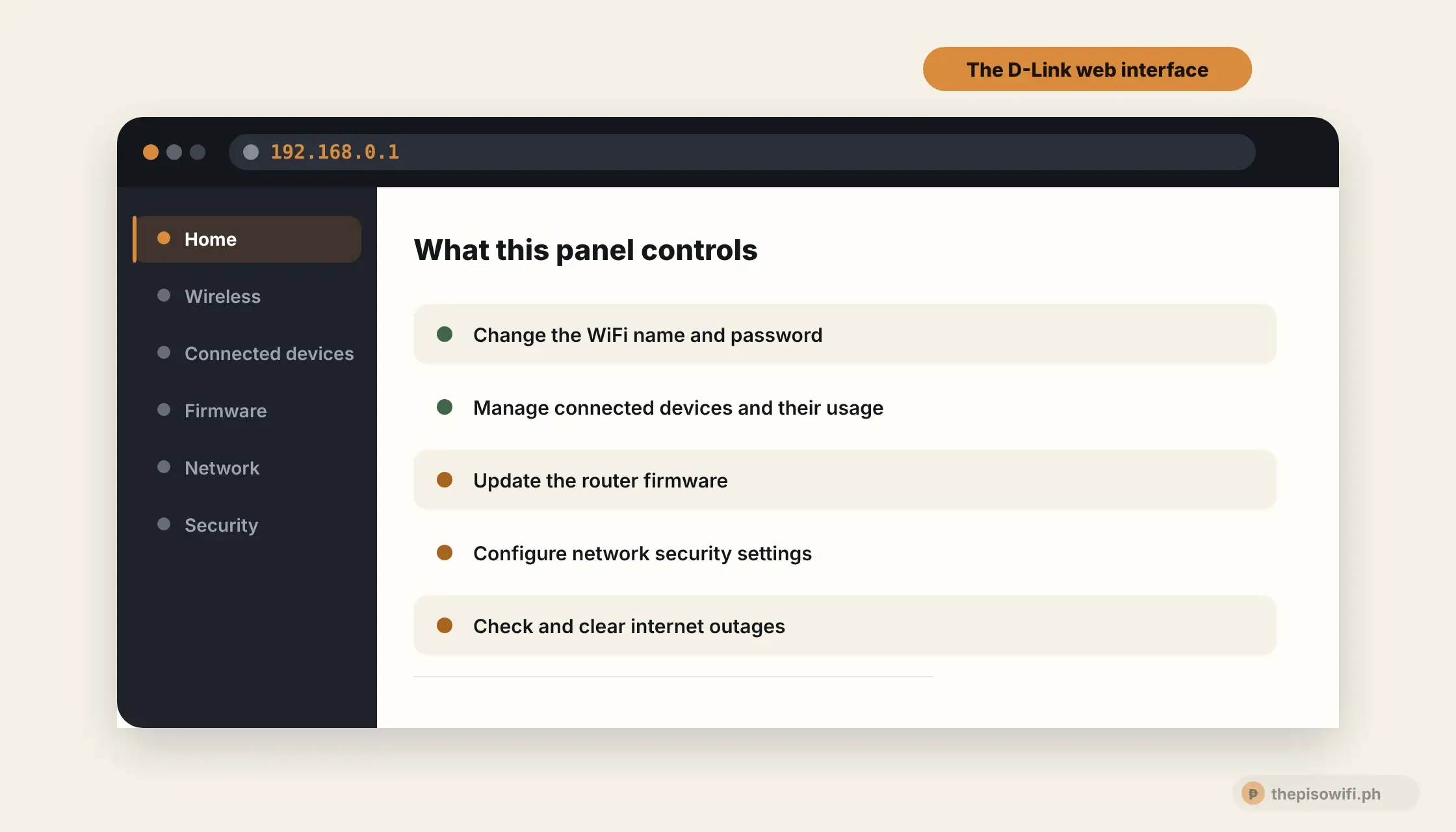
The D-Link web interface is an admin panel interface where you can customize router settings, such as managing device usage updates, changing credentials, configuring network security settings, managing internet outages, and accessing advanced features by logging into its admin panel using the router's default IP 192.168.0.1 and entering its original credentials before logging in. Make sure your device is connected to the internet through LAN or Wi-Fi.
D-Link router default IP and credentials
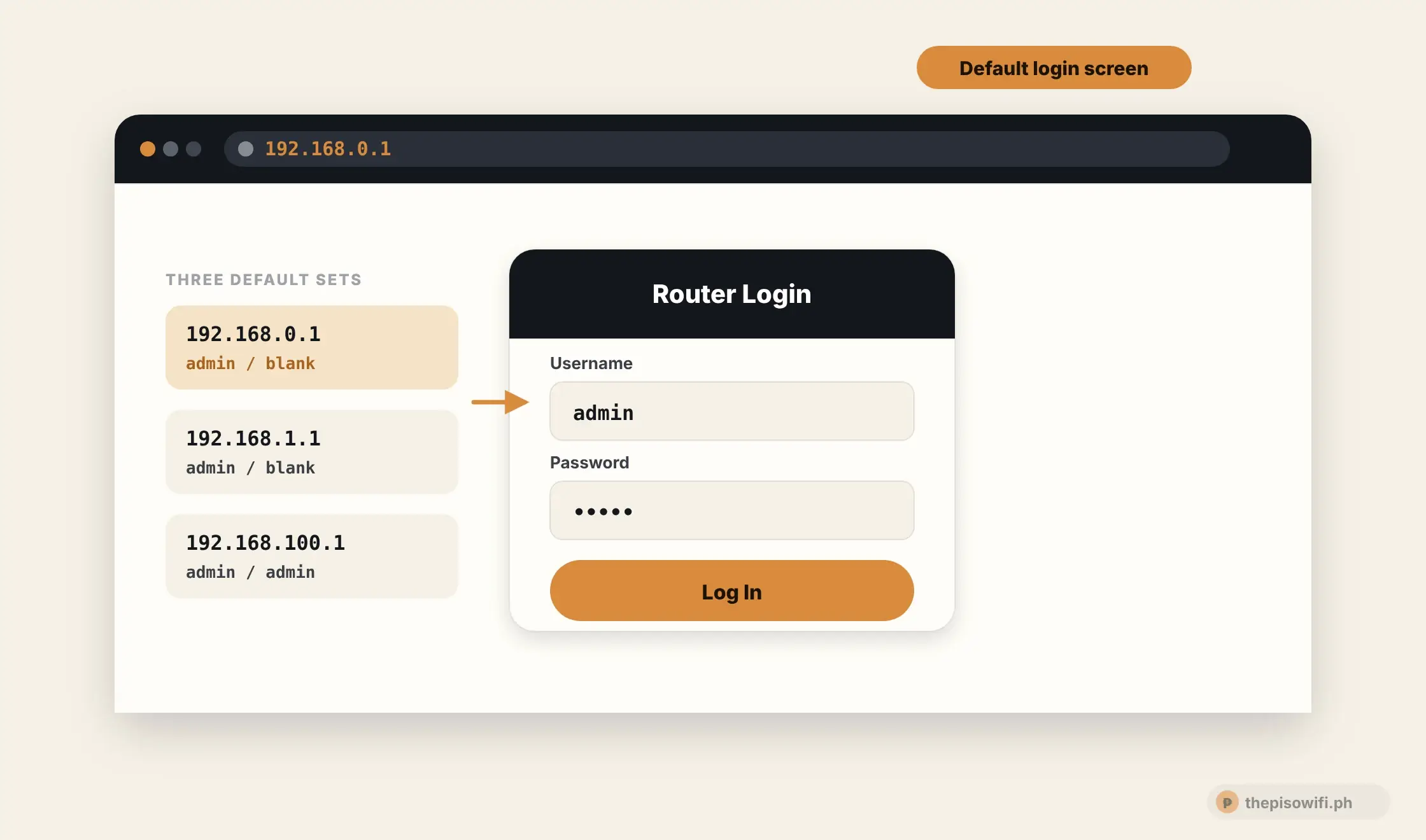
| Default IP | Default username | Default password |
|---|---|---|
| 192.168.0.1 | admin | admin/blank |
| 192.168.1.1 | admin | admin/blank |
| 192.168.100.1 | admin | admin |
How to Log In to Your D-Link Router
After setting up your D-Link router, you're now able to access its admin panel and customize network settings before logging in. Make sure your device is connected to the router's network through WiFi or an Ethernet cable; it only takes a few minutes to access your login panel.
- Connect your device, laptop, PC, or mobile to the router network
- Open a web browser such as Safari, Edge, or Google Chrome
- Enter the router default IP 192.168.0.1 in the address bar
- You will land on the admin panel login page
- Enter default credentials
- Now you'll have access to the admin dashboard where you can change the WiFi name, password, and username, and configure network settings.
Reset your D-Link router to factory settings
While logging into your admin panel, if you face logging issues or forget your password, the last option is to reset your router to factory settings. This totally resets your router to its original settings and resets your WiFi completely. If you want to set your WiFi router to factory settings, follow these steps.
- Make sure that your router is powered on
- Press and hold the reset button located on the back of the router for at least 15 seconds
- Release the button when the LED lights start blinking
- Wait for a few minutes to set your router to its factory settings
Now reconnect all your devices to the WiFi and customize the panel settings again.
What the D-Link Router Lights Mean
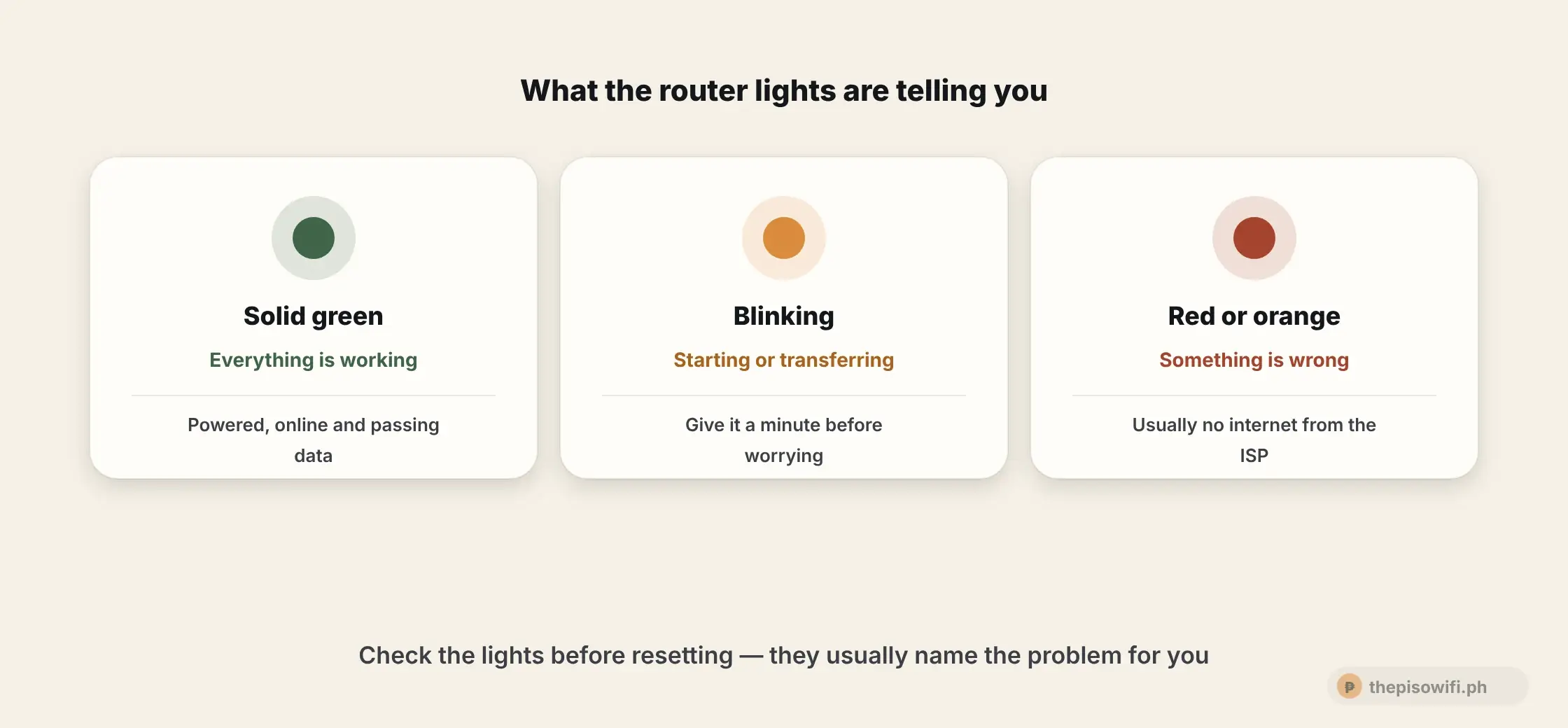
Router lights indicate your router status, including whether your router is working fine, the internet connection, WiFi activity, and connected devices. Solid green lights usually mean everything is working properly, while blinking red or orange lights may indicate a connection issue.
Troubleshooting D-Link Router Login Issues
Can't Access the D-Link Login Page
If the D-Link login page isn't opening, make sure to check your credentials, username, and password, whether they are correct, or check that you're entering the correct router IP before logging in. Always clear your browser cache if the page still doesn't load. Restart your router.
Incorrect Username or Password
If your login credentials are not accepted, verify that you entered the correct default credentials, or if you changed your password recently and can't remember, then the last option is to reset your router to its factory settings.
D-Link Router Not Connecting to the Internet
If you can log in to the router admin panel but don't have internet access, check that all the power cables are securely connected. Restart both the modem and the router. Also, make sure your internet service provider (ISP) isn't experiencing a network outage.
What If You Accidentally Misconfigure Your D-Link Home Network
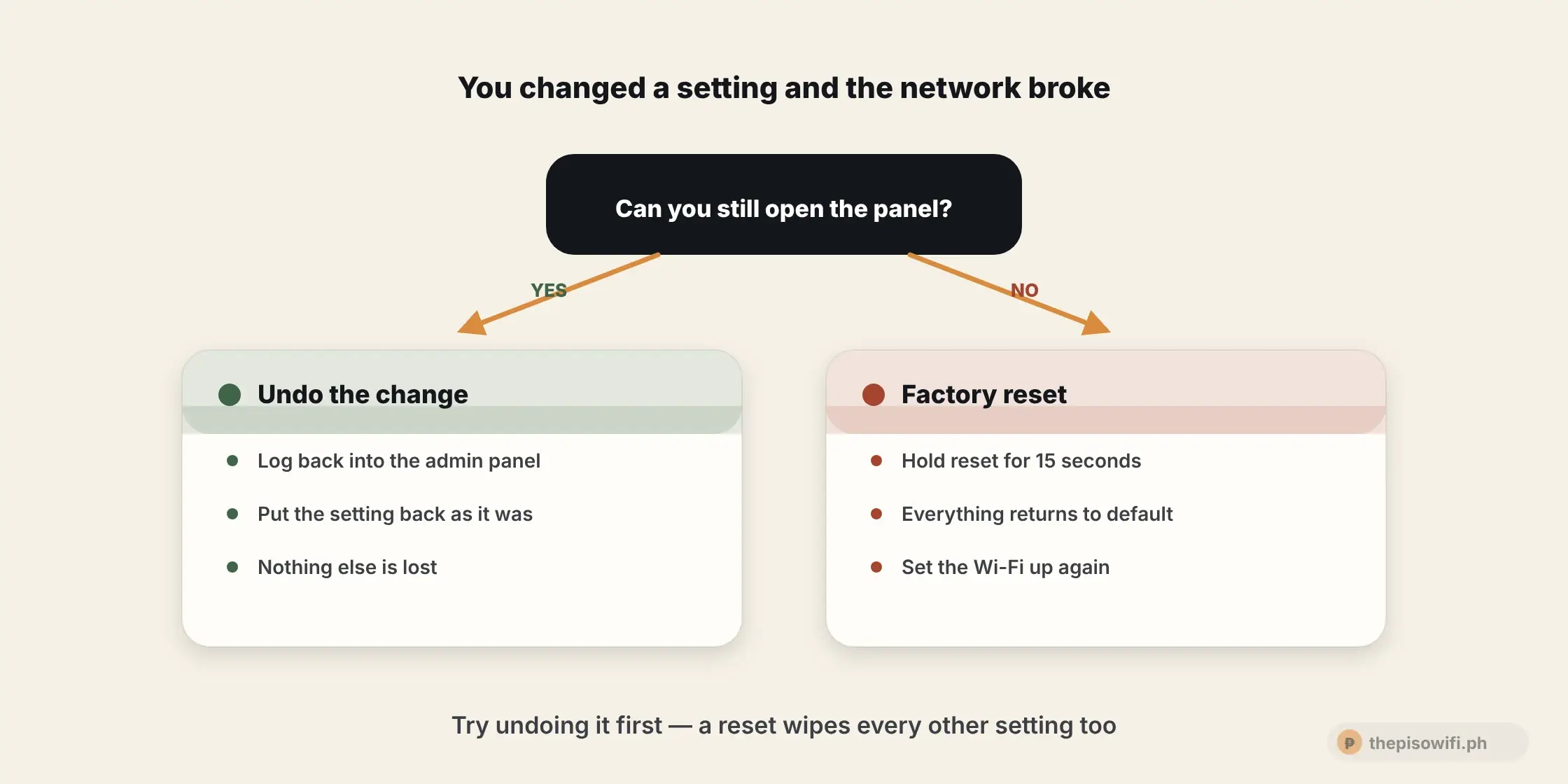
If you accidentally change a setting that causes your network to stop working, don't panic. Log into the admin panel and undo the recent changes if possible. If you can no longer change the settings, then reset your router to its factory settings.
Conclusion
The D-Link router is one of the most popular networking devices and comes in different models. Many users prefer this router because it provides secure, fast, and reliable service and offers full control over the network. Whether you want to change the username, password, or WiFi name; configure security settings; update firmware; or manage connected devices by logging into its admin panel, you'll be able to do these settings manually. Also, if you run into login problems, simple solutions like checking the IP, verifying the credentials, or restarting the router can often solve the issues.
FAQs
Is a D-Link Router Good for Gaming and Streaming?
Yes, many D-Link routers provide fast internet speed, low latency, and stable connections, making them a good choice for online gaming and HD or 4K streaming.
What Do the Lights on My D-Link Router Mean?
Router lights indicate your router status, including whether your router is working fine, the internet connection, WiFi activity, and connected devices. Solid green lights usually mean everything is working properly, while blinking red or orange lights may indicate a connection issue.
What Should I Do If I Forget My D-Link Router Password?
If you have forgotten your password, first check the router label credentials printed on the back of the router. If you've changed the password recently or forgotten it, then resetting your router is the last option.